
How to Download YouTube Transcript with Timestamps
Learn how to find, verify, copy, and download a YouTube transcript with timestamps using YouTube or a synchronized TubeTutor project.
The quickest way to get a timestamped transcript
If a YouTube video already has captions, the fastest starting point is usually YouTube’s own transcript panel. Open the video description, choose Show transcript, and YouTube displays the available caption text beside the player. Selecting a line jumps to the matching point in the video. YouTube documents this workflow in its official transcript help page.
That built-in view is useful for reading and finding a passage, but it is not always the best format for research, study notes, translation, or a reusable download. Long transcripts can be awkward to copy, and the text may need to stay connected to chapters, a summary, or an output language.
This guide covers both workflows:
- use YouTube’s transcript when you need a fast look at existing captions;
- use TubeTutor when you need a synchronized project, AI transcription for an eligible video without native captions, translation, or available export formats.
Before downloading: check what the source actually provides
A transcript can come from creator-provided captions, YouTube automatic captions, or a separate AI transcription. Those sources are not equally reliable. YouTube notes that automatic captions can vary in quality because accents, dialects, pronunciation, background noise, and overlapping speakers can affect speech recognition.
Before saving the text, check:
- whether the video has a transcript at all;
- which language and caption track are selected;
- whether timestamps are visible;
- whether names and specialist terms look correct; and
- whether you need plain text, subtitle timing, or a study document.
If you plan to quote someone, use the transcript as a navigation aid and replay the relevant timestamp. A transcript error can change the meaning of a sentence, and visual information may provide context that the text does not contain.
Method 1: use YouTube’s built-in transcript
Step 1: open the video
Navigate to the YouTube video in a desktop or supported mobile view. The transcript option appears only when a caption track is available. Some videos may have creator captions, automatic captions, or more than one language.
Step 2: select Show transcript
Expand the video description and choose Show transcript. The transcript panel displays caption lines and timestamps. As the video plays, the panel can follow the active line, and selecting a line seeks the video to that point.
Step 3: choose the correct language
If several caption tracks are available, select the one that matches your task. Do not assume an automatically translated track is the original transcript. Check a few lines against the audio before copying a large amount of text.
Step 4: copy the text you need
For a short quotation or a few notes, select the relevant lines and copy them into your document. Keep the video URL and timestamp with the passage so you can verify it later.
The built-in viewer is best when you need quick access and do not require a formal file. It may be less convenient when you need a complete cleaned transcript, several output formats, translation, or an AI summary linked to the same video.
Method 2: create a synchronized TubeTutor transcript
Open the TubeTutor YouTube Transcript Generator and paste the YouTube URL. The page takes you into a preflight step rather than immediately processing the video.
Step 1: review the preflight
Confirm that TubeTutor detected the correct video. Review the source language, duration, subtitle status, and output language. Guests see the temporary-result notice; signed-in users also see the active credit estimate.
If native captions are available, TubeTutor can use the caption track. When captions are missing, preflight can identify that AI transcription is required. The final result still depends on whether the video is accessible and whether the audio can be processed successfully.
Step 2: confirm the analysis
After confirmation, a guest can use one cumulative preview for one video up to 5 minutes. It includes temporary timestamped Subtitles, Chapters, the first automatic Summary, Notes, and one selected output language. The preview does not reset daily. Sign in to save the result as a reusable private project and reopen it later.
Step 3: verify important passages
Open the Subtitles panel and select several timestamps. Check names, numbers, commands, quotations, and technical terms against the source video. This step is especially important when the source uses automatic captions or AI transcription.
Step 4: copy or export
You can review and copy transcript text inside the project. Eligible Pro users can use the subtitle export options shown in the workspace, including SRT, TXT, and Markdown.
- SRT is useful when another video or caption tool needs timed subtitle entries.
- TXT is useful for plain reading, search, and simple notes.
- Markdown is useful when the transcript will be kept in a documentation or knowledge workflow.
Guest results are temporary, limited to one video up to 5 minutes in total, and cannot be exported. New TubeTutor accounts receive 200 starter credits once, valid for 30 days, for saved analysis, while export remains a separate signed-in Pro permission with its active credit charge.
Which timestamp format should you keep?
The best format depends on what you will do next.
Clickable project timestamps
Use the synchronized TubeTutor project when you expect to revisit the source often. Selecting a transcript segment returns you to the relevant video moment, which is helpful for technical tutorials, research, and lecture review.
Human-readable timestamps
For notes, a format such as 12:34 — explanation of the deployment step is easy
to scan. Keep the video URL near the note so another reader can understand the
source.
Subtitle timestamps
SRT contains start and end timing for subtitle cues. Choose it when timing needs to be imported into compatible caption software. Do not remove the timing information if that is the reason you selected SRT.
How to clean a transcript without damaging the evidence
Raw caption text may contain repeated words, missing punctuation, or broken sentences. Cleaning can improve readability, but aggressive editing can also change what the speaker said.
Use a conservative workflow:
- preserve an original copy or project;
- correct obvious caption errors only after checking the timestamp;
- add punctuation without rewriting the argument;
- mark uncertain names or terms instead of guessing;
- separate your interpretation from the transcript text.
If you are creating study notes, write your summary in a different section. The transcript should represent the source; your notes should explain what you think the source means.
What if the video has no transcript?
The YouTube transcript panel is available only for videos with captions. A missing panel can mean captions are unavailable, still processing, unsupported, or inaccessible for that video.
TubeTutor’s preflight can indicate whether AI transcription is required. AI transcription is useful, but it is not guaranteed to recover every source. Audio quality, background music, overlapping voices, language support, video access, and duration can affect the result and processing cost.
Do not use an unrelated transcript simply because it has the same video title. Confirm the URL, speaker, and content before treating any text as the source.
Can you translate the transcript before downloading it?
Yes, when the output language is supported. Choose the language before confirming the TubeTutor analysis. The project then uses that language for localized subtitles and supported generated content while keeping segments attached to the source timeline.
Translation adds another interpretation layer. Verify names, numbers, legal or medical statements, and specialist terms with the original. For high-stakes use, obtain review from a qualified human translator.
Turn the transcript into useful study material
Downloading the file is often only the beginning. A timestamped transcript can support several workflows:
- search a lecture for definitions and examples;
- copy commands from a development tutorial;
- create citations or source notes with timestamps;
- compare the exact wording with an AI summary;
- build a chapter outline for a long presentation; or
- translate a useful course into a supported study language.
If your goal is understanding rather than archiving, continue with YouTube Transcript to AI Summary: Step-by-Step Guide. It explains when to read the full transcript, how to evaluate a summary, and how to keep both connected to the video.
Common transcript download questions
Can I download every YouTube transcript?
No. The built-in transcript depends on captions being available, and third-party processing depends on video access, audio, language support, and service limits.
Are YouTube automatic captions completely accurate?
No automatic transcript should be assumed perfect. Verify important wording against the timestamped video.
Is a transcript the same as subtitles?
They contain related spoken text, but subtitle formats often preserve cue timing and may include display information. A reading transcript may combine or clean those cues for easier study.
Can I remove timestamps?
You can copy or export a plain-text representation when available, but keep a timed version if verification matters. Removing every timestamp makes it harder to return to the source.
Download a transcript without losing the source
Use YouTube’s built-in panel for a fast look at captioned videos. Use a synchronized project when you need search, project context, translation, chapters, an AI summary, or eligible SRT, TXT, and Markdown exports.
Start with the TubeTutor YouTube Transcript Generator, review the preflight, and verify important text against the original video before reusing it.
Author

Categories
More Posts
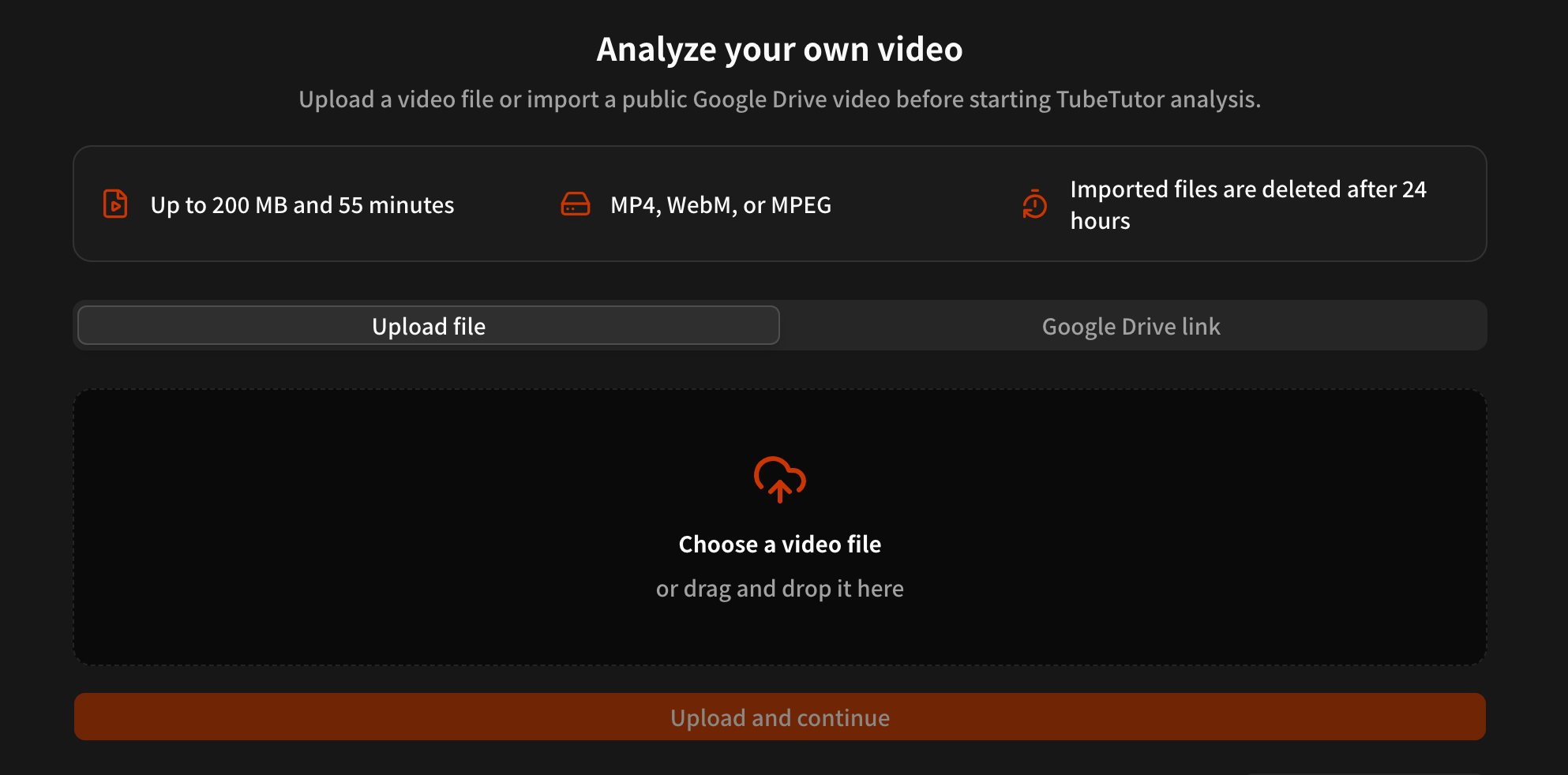
Summarize Uploaded Videos with AI Free – AI Video Summarizer Upload Tool
Summarize uploaded videos with AI using file upload or Google Drive. Learn the 200 MB and 55-minute limits for meetings, lectures, transcripts, notes, and summaries.
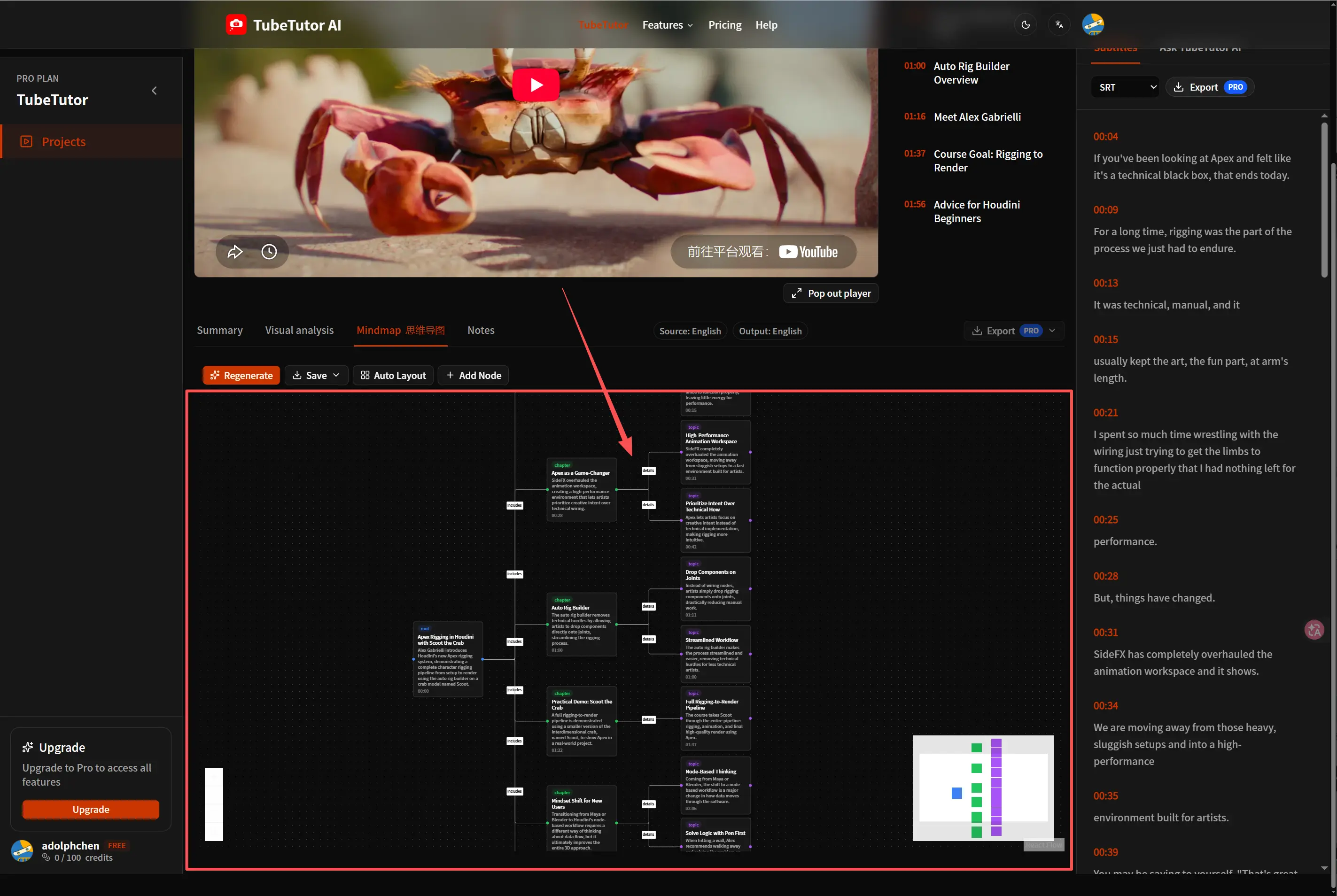
How to Turn a YouTube Video into an Editable Mind Map
Convert a long YouTube tutorial into an editable mind map, refine its structure, and keep the result connected to your transcript and study notes.
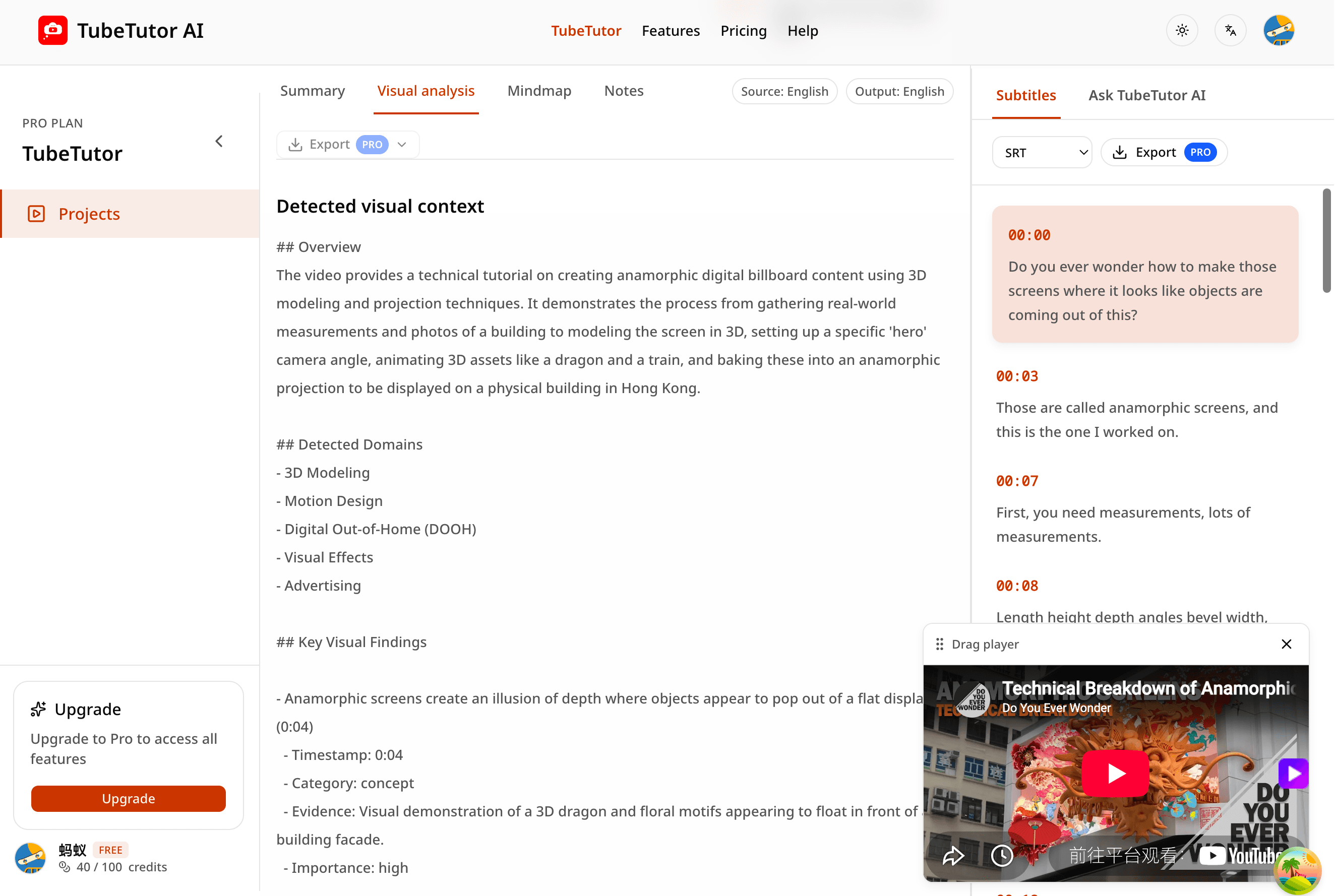
YouTube Transcript to AI Summary: Step-by-Step Guide
Turn a timestamped YouTube transcript into a useful AI summary while preserving source context, checking accuracy, and building better study notes.
TubeTutor Updates
Learn faster from video
Get product updates, AI video learning workflows, and tips for turning tutorials into summaries, mindmaps, and notes.