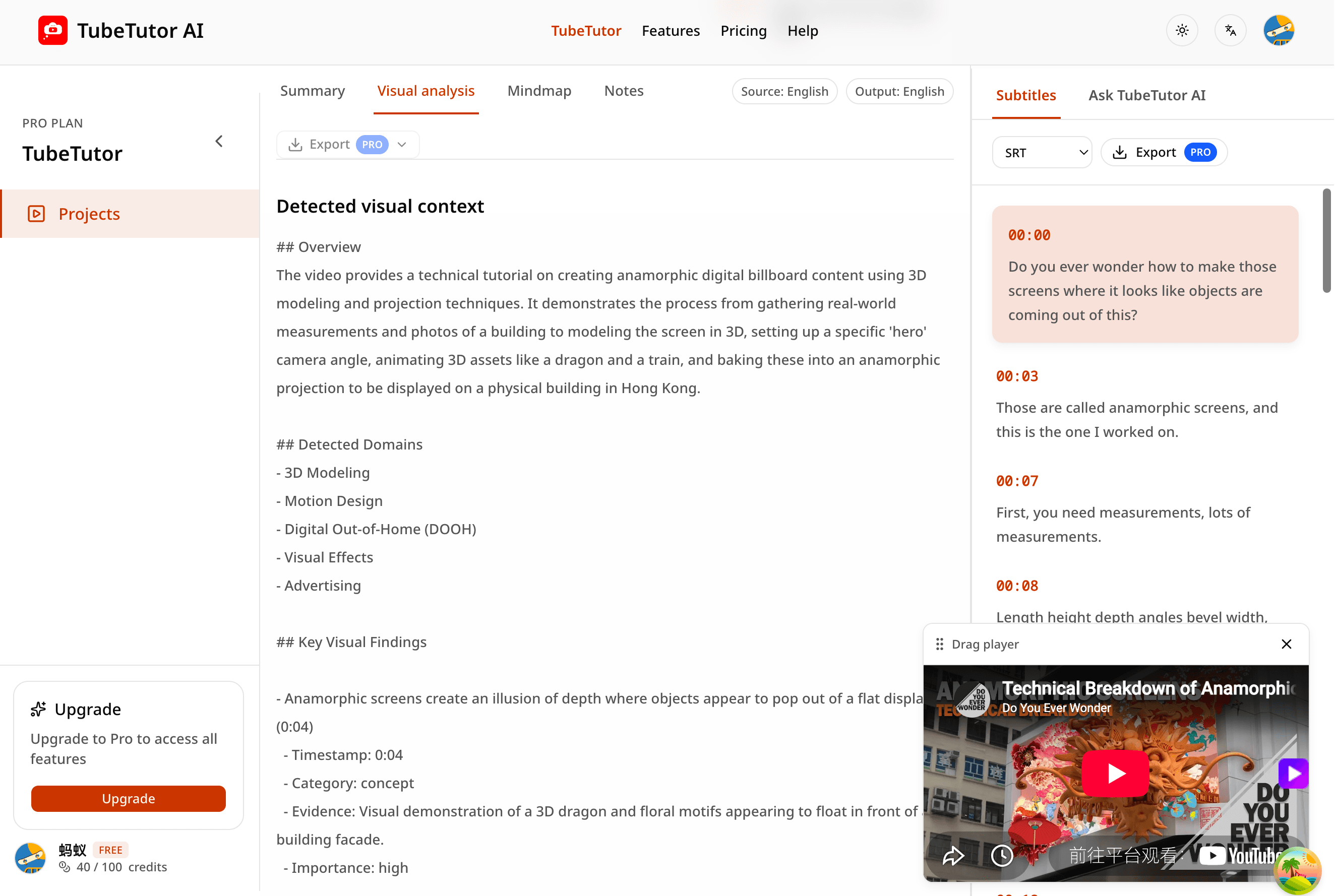
YouTube Transcript to AI Summary: Step-by-Step Guide
Turn a timestamped YouTube transcript into a useful AI summary while preserving source context, checking accuracy, and building better study notes.
Why summarize a transcript instead of only the video title?
A video title and description tell you what the creator intends to cover. The transcript shows what was actually said. It contains the definitions, examples, qualifications, transitions, and repeated ideas that an AI system needs to produce a useful summary.
However, a transcript is not automatically a good set of notes. Long tutorials include introductions, pauses, corrections, sponsor messages, side comments, and detailed demonstrations. A summary should reduce that volume while preserving the ideas needed to understand the source.
The safest workflow keeps three layers connected:
- the original YouTube video as the source;
- the timestamped transcript as searchable evidence;
- the AI summary as a condensed learning aid.
TubeTutor places those layers in one project, along with chapters and optional study modules. This guide explains how to use that structure without treating an AI summary as a perfect replacement for the video.
Step 1: choose a video with a clear purpose
Start with a tutorial, lecture, interview, presentation, or knowledge video that answers a specific question. Before generating anything, write down what you need from it:
- a quick decision on whether the video is worth watching;
- revision notes for a course;
- the main steps in a technical tutorial;
- arguments and evidence from an interview;
- a reusable outline for a team.
This goal determines what “good summary” means. A technical guide needs prerequisites, commands, and sequence. An interview summary should distinguish the speaker’s claims from the interviewer’s questions. A lecture summary may need definitions and relationships rather than every example.
Step 2: create or retrieve the transcript
Open the TubeTutor YouTube Transcript Generator, paste the URL, and review the preflight. Confirm the video, source language, output language, and caption status. Guests see the temporary-result terms for the two-distinct-video daily allowance; signed-in users also see the active credit estimate.
When usable native captions exist, TubeTutor can process them. If they are missing, preflight can identify that AI transcription is required. In either case, the transcript quality affects every later AI result.
After processing, open the synchronized Subtitles panel. Select timestamps and check:
- names, product terms, and acronyms;
- numbers, dates, commands, and measurements;
- transitions such as “however,” “except,” or “do not”;
- sections with overlapping speakers or poor audio.
You do not have to proofread every casual phrase, but important source errors should be recognized before you rely on a condensed result.
Step 3: use chapters to understand the structure
Chapters show how the video moves from one topic or tutorial stage to another. Scan the chapter titles before reading the Summary. They help you notice whether the result covers the whole video or overemphasizes one section.
For example, a software tutorial might contain:
- the problem and expected result;
- prerequisites and installation;
- core implementation;
- troubleshooting;
- testing and next steps.
A summary that covers only the implementation but omits prerequisites and testing may sound fluent while remaining incomplete. The chapter outline gives you a quick coverage checklist.
Step 4: read the automatic Summary
TubeTutor creates the first automatic Summary during the initial project flow. Open the Summary panel and read it once without editing. Identify the main topic, key takeaways, important steps, and any stated limitations.
Then compare the Summary with your original goal:
- Does it answer the question you brought to the video?
- Are the major chapters represented?
- Does it separate facts, opinions, and examples?
- Did it preserve warnings and exceptions?
- Are important terms spelled correctly?
The first Summary is a starting point. Manual regeneration and optional modules can use additional credits, so decide what is actually missing before requesting more AI work.
Step 5: verify claims with the transcript
AI summaries can compress away context or make a cautious statement sound more certain. When a point matters, search the transcript and select the relevant timestamp.
Pay special attention to:
- quotations you might publish;
- legal, medical, financial, or safety statements;
- numerical comparisons;
- instructions that can break a system or lose data;
- the difference between what a speaker observed and what they recommend.
If the transcript itself is uncertain, replay the audio and inspect the visual context. The summary should help you navigate the source, not give you a reason to stop checking it.
Step 6: turn the Summary into active notes
Copying a summary into a document is passive. A stronger learning workflow adds your own structure and questions.
Try this note format:
Main idea
Write one or two sentences explaining the video’s purpose in your own words.
Key takeaways
Keep three to seven points that you expect to use or remember. Link each one to a chapter or transcript timestamp when evidence matters.
Process or argument
Record the sequence of steps, causes, decisions, or supporting reasons. Do not flatten a conditional process into a simple checklist if the speaker describes exceptions.
Open questions
List anything the video does not answer, anything you doubt, and concepts that need another source.
Next action
Decide what you will do: test a command, review a lecture section, compare another source, or turn the concepts into a mind map.
Transcript, Summary, or both?
Use the transcript when exact wording matters
The transcript is better for quotations, commands, terminology, detailed instructions, and source verification. Timestamps let you return to the complete moment.
Use the Summary when orientation matters
The Summary is better for deciding whether a video is relevant, reviewing the main ideas, or recalling the overall structure after you have studied it.
Use both for serious learning
Start with the Summary, open the transcript for important detail, and use chapters to move between sections. This layered approach is faster than reading every line while remaining more trustworthy than relying on a condensed answer alone.
How to handle long YouTube transcripts
A two-hour lecture can produce a large amount of text. Do not try to turn every sentence into the same level of note.
Use a staged review:
- scan the Summary for scope;
- inspect the chapter outline;
- choose the chapters related to your goal;
- search the transcript for terms and claims;
- replay only the sections that need visual or audio context.
This method keeps the full source available while directing attention to the parts that provide the most value.
Summarizing a transcript in another language
Choose a supported output language during preflight. TubeTutor uses the project language for localized subtitles and supported generated content, including the automatic Summary and chapters.
Translation and summarization are two separate interpretation steps. A fluent localized summary may still hide a transcription or translation error. Verify names, numbers, specialist terms, and high-stakes advice against the original video or a qualified translator.
Common AI summary mistakes
Treating repeated ideas as separate takeaways
Speakers often repeat a point with different examples. A useful summary combines the underlying idea rather than listing each repetition.
Removing important qualifications
Words such as “usually,” “in this example,” and “only when” can change the meaning. Check the transcript when the Summary makes a broad claim.
Confusing examples with recommendations
A presenter may demonstrate one approach without claiming it is best. Label examples accurately in your notes.
Losing the order of a process
Technical and procedural videos depend on sequence. Use chapters and timestamps to confirm that prerequisites appear before actions and validation appears after implementation.
Trusting a polished sentence
Fluent writing is not evidence. A clear Summary still needs the source video and transcript behind it.
Can you download the transcript and Summary?
You can review and copy transcript and generated content in the project. Eligible users can access the export options presented in the workspace. Subtitle exports include available SRT, TXT, and Markdown formats, while study exports can include supported Markdown or PDF content.
If your immediate goal is the transcript file, follow How to Download YouTube Transcript with Timestamps. It explains when YouTube’s built-in transcript is enough and when a synchronized project is more useful.
A repeatable transcript-to-summary checklist
Before considering the work complete, confirm that you:
- processed the correct YouTube URL;
- selected the intended source and output language;
- checked important transcript terms against timestamps;
- reviewed the main chapter coverage;
- read the automatic Summary for omissions and overstatement;
- separated source wording from your own interpretation;
- attached evidence or timestamps to important notes; and
- identified questions that need another source.
Create a summary that remains verifiable
Paste the video into the TubeTutor YouTube Video Summarizer, review the preflight, and let TubeTutor create the transcript, chapters, and first automatic Summary in one project. Use the Summary to understand the whole, the transcript to verify the details, and the original video whenever context matters.
Author

Categories
More Posts
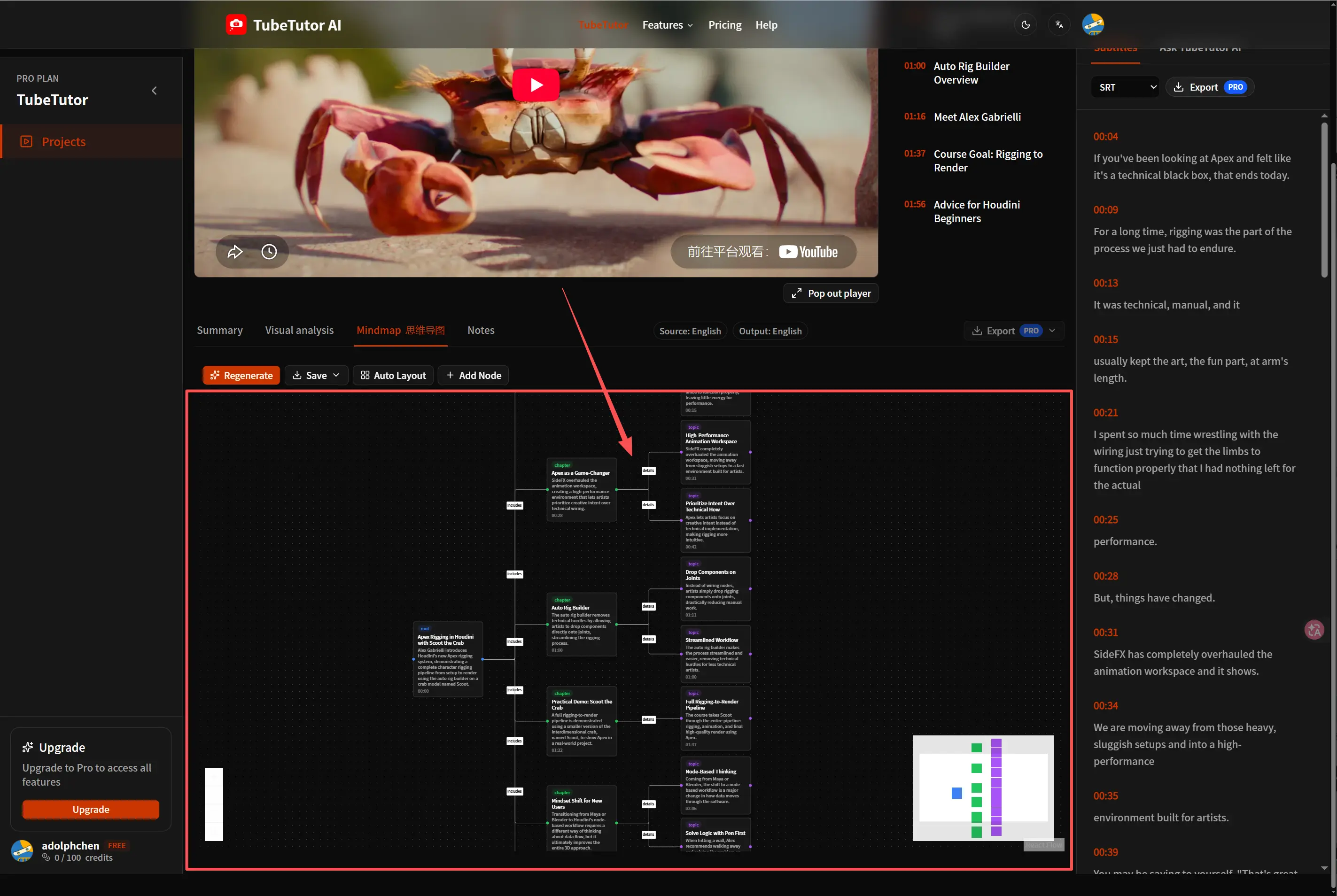
How to Turn a YouTube Video into an Editable Mind Map
Convert a long YouTube tutorial into an editable mind map, refine its structure, and keep the result connected to your transcript and study notes.
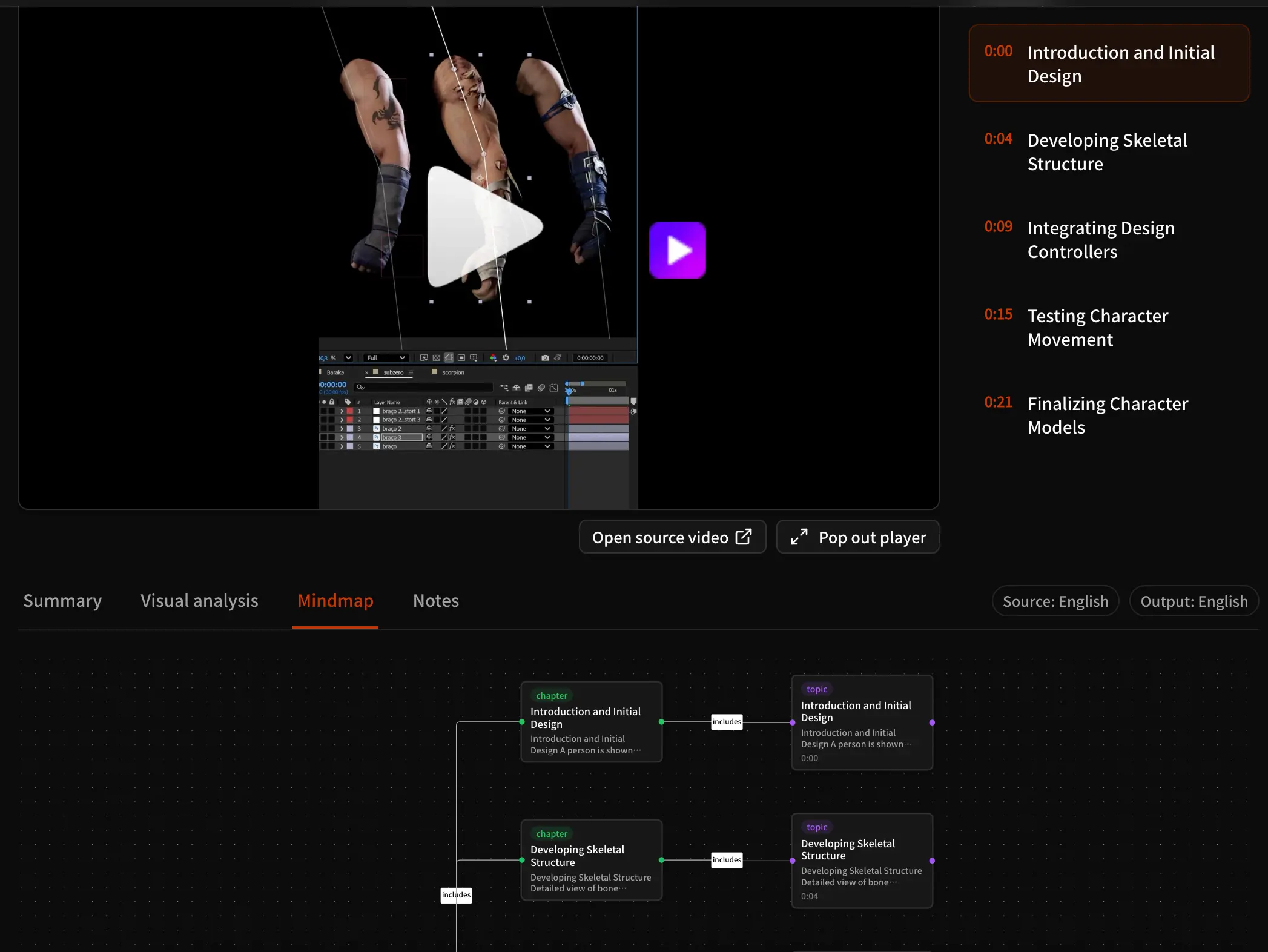
How to Analyze Instagram Reels with AI: A Practical Guide
Learn how to analyze public Instagram Reels with AI, review summaries, transcripts, visual insights, and mind maps, and troubleshoot common limitations.
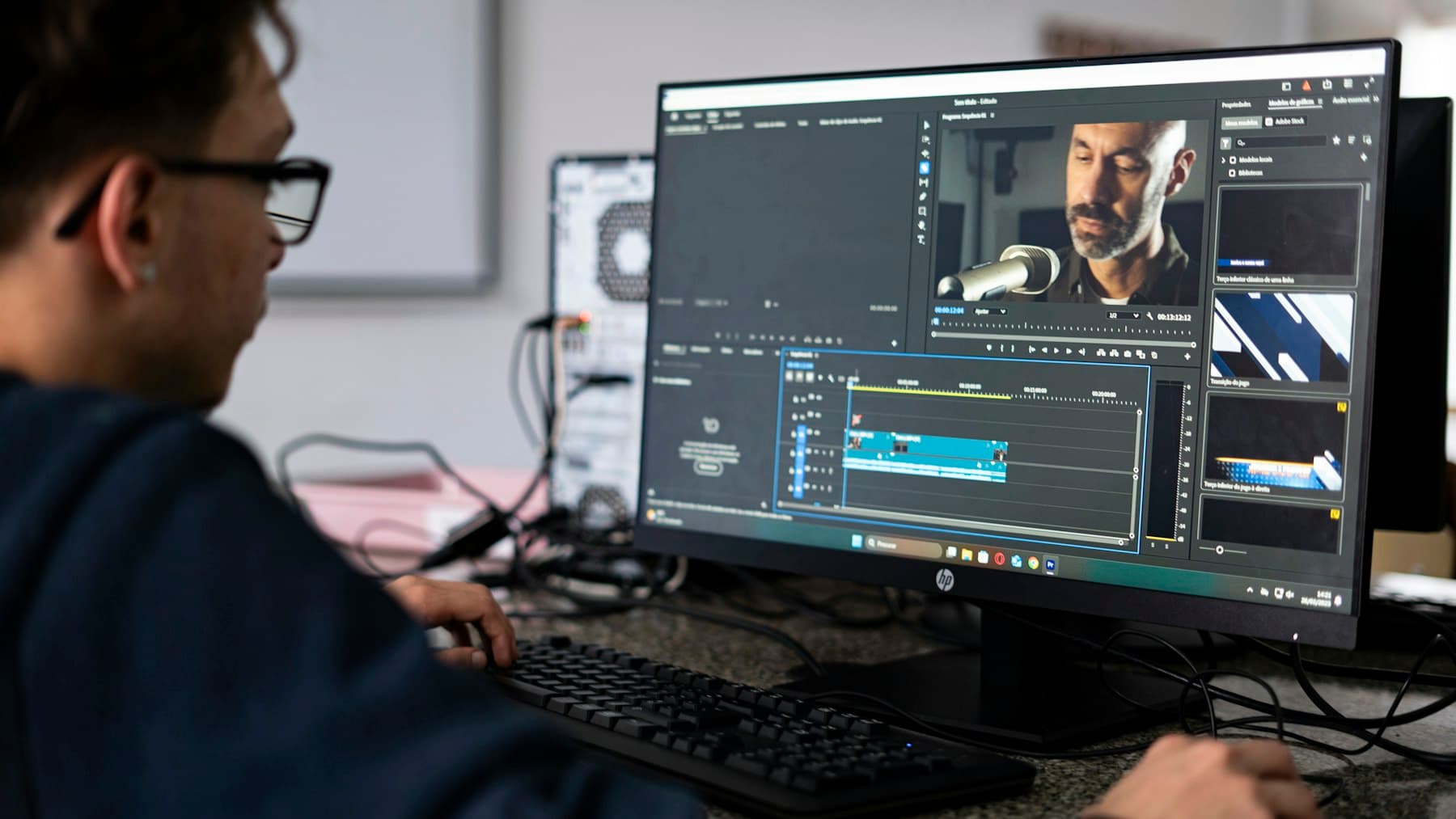
What Is Video Visual Analysis? How AI Reads Beyond Transcripts
Learn how AI video visual analysis finds on-screen actions, interface text, tools, objects, charts, and timestamps, plus how to review its evidence, limits, and uses.
TubeTutor Updates
Learn faster from video
Get product updates, AI video learning workflows, and tips for turning tutorials into summaries, mindmaps, and notes.