Summarize Uploaded Videos with AI Free – AI Video Summarizer Upload Tool
Summarize uploaded videos with AI using file upload or Google Drive. Learn the 200 MB and 55-minute limits for meetings, lectures, transcripts, notes, and summaries.
You recorded a meeting, attended a lecture, or received a training video that never appeared on YouTube. Replaying it just to find one decision, definition, or demonstration takes time.
If you are searching for a way to summarize uploaded video with AI free, an AI video summarizer upload workflow can turn the recording into a searchable transcript, chapters, a concise Summary, and working notes. TubeTutor now lets signed-in users upload their own video or import a public Google Drive file, review the processing estimate, and keep the results in the same workspace used for web video analysis.
This is an important step in TubeTutor's development. The product began with video URLs from YouTube, TikTok, and Instagram. External import closes the gap between public links and recordings created at work, in class, and during research.
What You Can Do with an AI Video Summarizer Upload Workflow
Create a meeting summary from a recording
Upload a stand-up, client call, or project review to create a readable first pass. A transcript makes the conversation searchable, Chapters separate topics, and the Summary highlights supported decisions. Verify owners, deadlines, budgets, and commitments before sharing minutes.
Turn a lecture video into study notes
Students can upload a lecture recorded with permission and use timestamped sections to return to a concept. A Summary, Mindmap, and personal notes help connect ideas, while formulas, names, and quotations still require checking.
Summarize training and onboarding videos
Training recordings combine speech with interfaces, slides, or demonstrations. TubeTutor organizes available speech into a transcript and Chapters. When enough evidence exists, Visual Analysis can separately examine visible tools, text, and steps.
Organize interviews and personal recordings
Researchers and creators can turn interviews, brainstorming, or draft tutorials into structured reference material. It helps find themes, but it is not a certified transcript or permission to republish someone else's words.
How to Summarize an Uploaded Video with AI
Step 1: Open External video
Open Platforms and choose External video. This entry point handles recordings stored on your computer or in Google Drive with the correct access checks and temporary-storage rules.
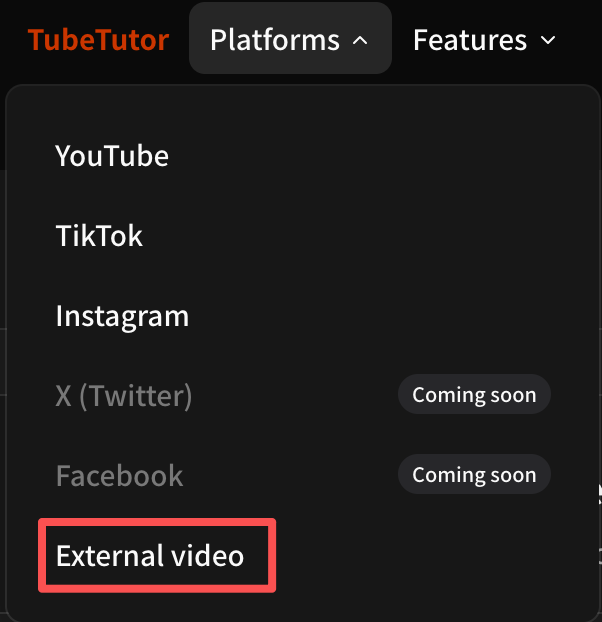
Choose External video when the recording is not already on a supported public video platform.
External import requires sign-in because it creates temporary account storage and a saved project. A free account can use available starter credits, but processing is metered. The pre-check is the authoritative cost estimate.
Step 2: Upload a file or choose Google Drive
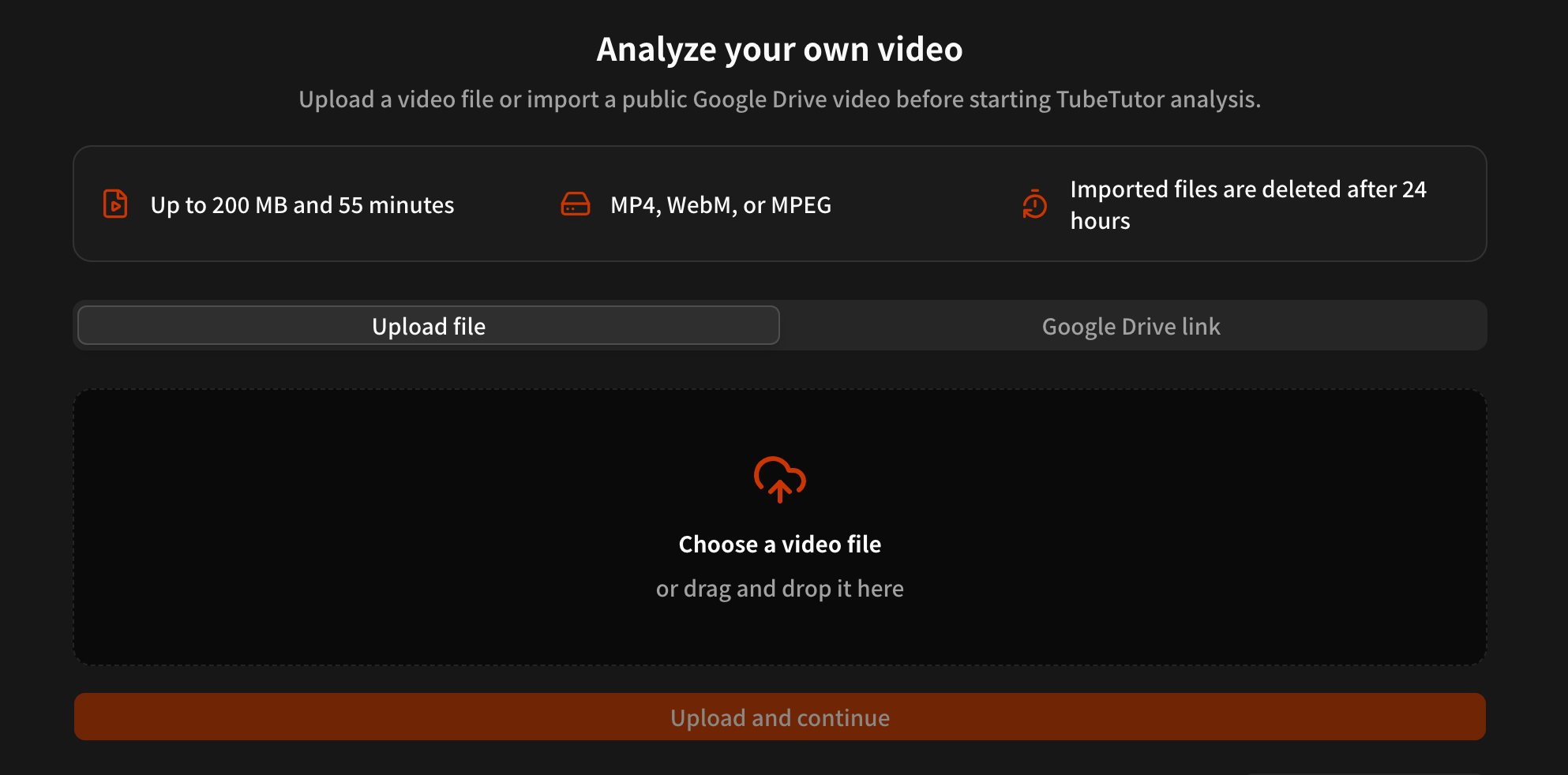
In Upload file, click the drop zone or drag a video onto it. TubeTutor reads the format, size, and duration before upload. Select Upload and continue; the progress bar shows the multipart transfer.
For a Drive file, switch to Google Drive link. Paste a public file URL, test it, review the filename and size, then choose Import and continue.
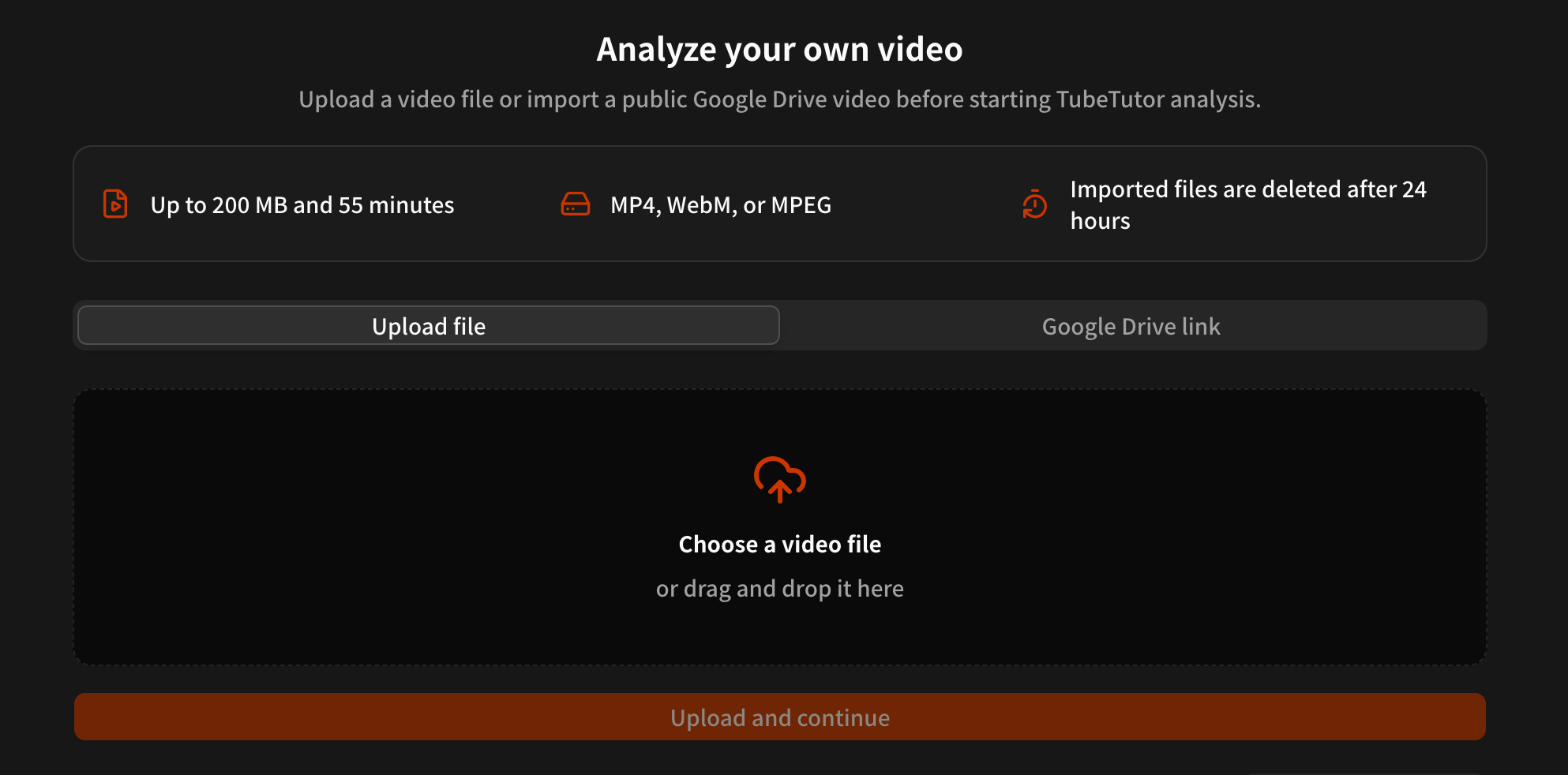
The import page shows the supported formats, 200 MB limit, 55-minute limit, upload controls, and 24-hour deletion policy before processing begins.
Step 3: Review the pre-check
After transfer, TubeTutor verifies the size, type, and duration. Confirm the file, AI transcription method, estimated credits, output language, and expiry. Analysis starts only after Create project and process.
Step 4: Work with the analysis
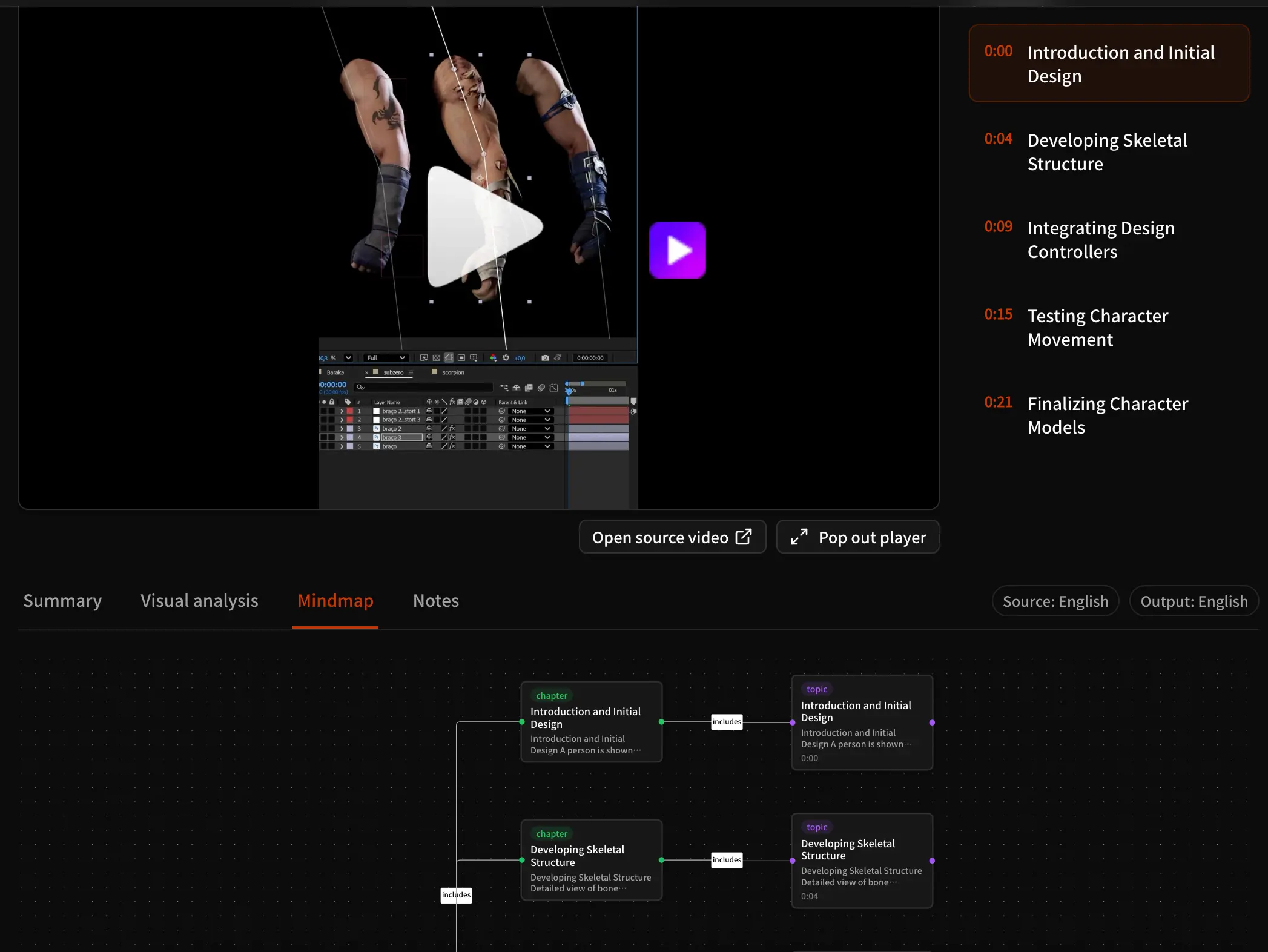
The workspace can include a searchable transcript, Chapters, Summary, and your own notes. Depending on account access and source evidence, project tools can also include a Mindmap, Visual Analysis, AI questions, exports, or Notion.
Return to the recording before relying on exact quotations, numbers, instructions, or safety-related details.
How to Summarize a Google Drive Video
Google Drive import avoids downloading and uploading the same recording. TubeTutor does not connect to your Drive account; it accesses only the public video file identified by the sharing link.
Use these steps:
- Select the video file in Google Drive and open Share.
- Under General access, choose Anyone with the link.
- Keep the role set to Viewer, then copy the file link.
- In TubeTutor, open External video and select Google Drive link.
- Paste the URL and choose Test Google Drive link.
- When the filename and size appear, choose Import and continue.
- Wait for the copy to finish, review the pre-check, and confirm processing.
A typical accepted URL looks like this:
https://drive.google.com/file/d/FILE_ID/view
If testing fails, confirm that the URL points to one video—not a folder, Doc, or permission page—that downloads are allowed, and that it opens in a signed-out browser. Test again after changing permissions.
TubeTutor streams the Drive video into temporary object storage and sends that temporary URL to the analysis provider. The original is unchanged, and the copy is deleted after 24 hours.
Supported Video File Types and Limits
The current external-video workflow uses the following boundaries:
| Feature | Current limit |
|---|---|
| Maximum file size | 200 MB |
| Maximum video duration | 55 minutes |
| Supported file types | MP4, WebM, MPEG/MPG |
| Local file selection | Click or drag and drop |
| Google Drive | Public single-file sharing links |
| Temporary-file retention | Deleted after 24 hours |
| Access | Sign-in required; credit estimate shown before processing |
Both size and duration must pass. A 180 MB recording that lasts 60 minutes is still over the duration limit, while a 40-minute file larger than 200 MB is over the size limit. MOV is not currently accepted by this uploader, and TubeTutor does not claim support for arbitrary direct-download URLs. Platform URLs should continue through their dedicated YouTube, TikTok, or Instagram inputs.
The 24-hour window is for processing, not permanent hosting. Keep the original and upload only content you are authorized to process. Avoid unnecessary confidential or personal information.
Why Upload Analysis Changes the TubeTutor Workflow
URL analysis is convenient when a video is already public. It is less useful for a private lecture recording, an internal training session, an unpublished interview, or a meeting saved directly from a conferencing app. An upload workflow brings those sources into the same research environment without requiring users to publish them on a social platform first.
Some products specialize in meetings; others focus on YouTube summaries or general notes. TubeTutor connects both sides: supported platform URLs when a public link exists, and authorized files when it does not. Both lead into one video-centered workspace.
Results still depend on audio quality, overlapping speakers, vocabulary, and visible detail. The original recording remains the final reference.
FAQ: Uploaded Video AI Summarizer
Is there a free AI video summarizer for uploaded files?
External uploads require sign-in and use credits. A free account may use available starter credits, and the exact estimate appears before processing. This is not an unlimited, no-sign-up service.
Can I summarize a meeting recording with AI?
Yes, if the recording is an MP4, WebM, or MPEG/MPG file within 200 MB and 55 minutes. Upload it directly or use a public Google Drive link, then verify critical decisions and action items against the source.
How do I summarize a lecture video?
With permission, upload the lecture and use the transcript, Chapters, Summary, and notes as a review structure. Check formulas, quotations, and definitions.
Can an AI video summarizer upload a Google Drive file?
Yes. Set the individual video to Anyone with the link, paste its sharing URL, test access, and import it. Private files, folders, and links that block downloads cannot be processed by this workflow.
How is upload analysis different from YouTube summarization?
The YouTube video summarizer starts from a public YouTube URL. External import accepts an authorized local file or public Google Drive video, which is better for meetings, lectures, and unpublished material. TikTok videos continue through the dedicated TikTok video summarizer.
Are uploaded videos stored permanently?
No. Imported source files are deleted from temporary storage after 24 hours. TubeTutor is an analysis workflow, not a replacement for your original video archive.
Summarize Your First Uploaded Video
File and Google Drive import extends TubeTutor beyond public posts to meetings, lectures, training, interviews, and personal recordings.
Open External video, upload a recording, and review the AI analysis estimate →
Author

Categories
More Posts
How to Analyze Instagram Reels with AI: A Practical Guide
Learn how to analyze public Instagram Reels with AI, review summaries, transcripts, visual insights, and mind maps, and troubleshoot common limitations.

How to Download YouTube Transcript with Timestamps
Learn how to find, verify, copy, and download a YouTube transcript with timestamps using YouTube or a synchronized TubeTutor project.
How to Summarize TikTok Videos with AI (Free TikTok Video to Text Summarizer)
Learn three practical ways to summarize TikTok videos with AI, turn usable speech into text, review visual details, and try TubeTutor free without signing up.
TubeTutor Updates
Learn faster from video
Get product updates, AI video learning workflows, and tips for turning tutorials into summaries, mindmaps, and notes.