Automatic topic detection
Identify meaningful transitions across a long tutorial or lecture from its processed transcript and context.
Turn a long YouTube tutorial, lecture or knowledge video into an organized outline with clear AI-generated chapter titles and timestamps linked directly to playback.
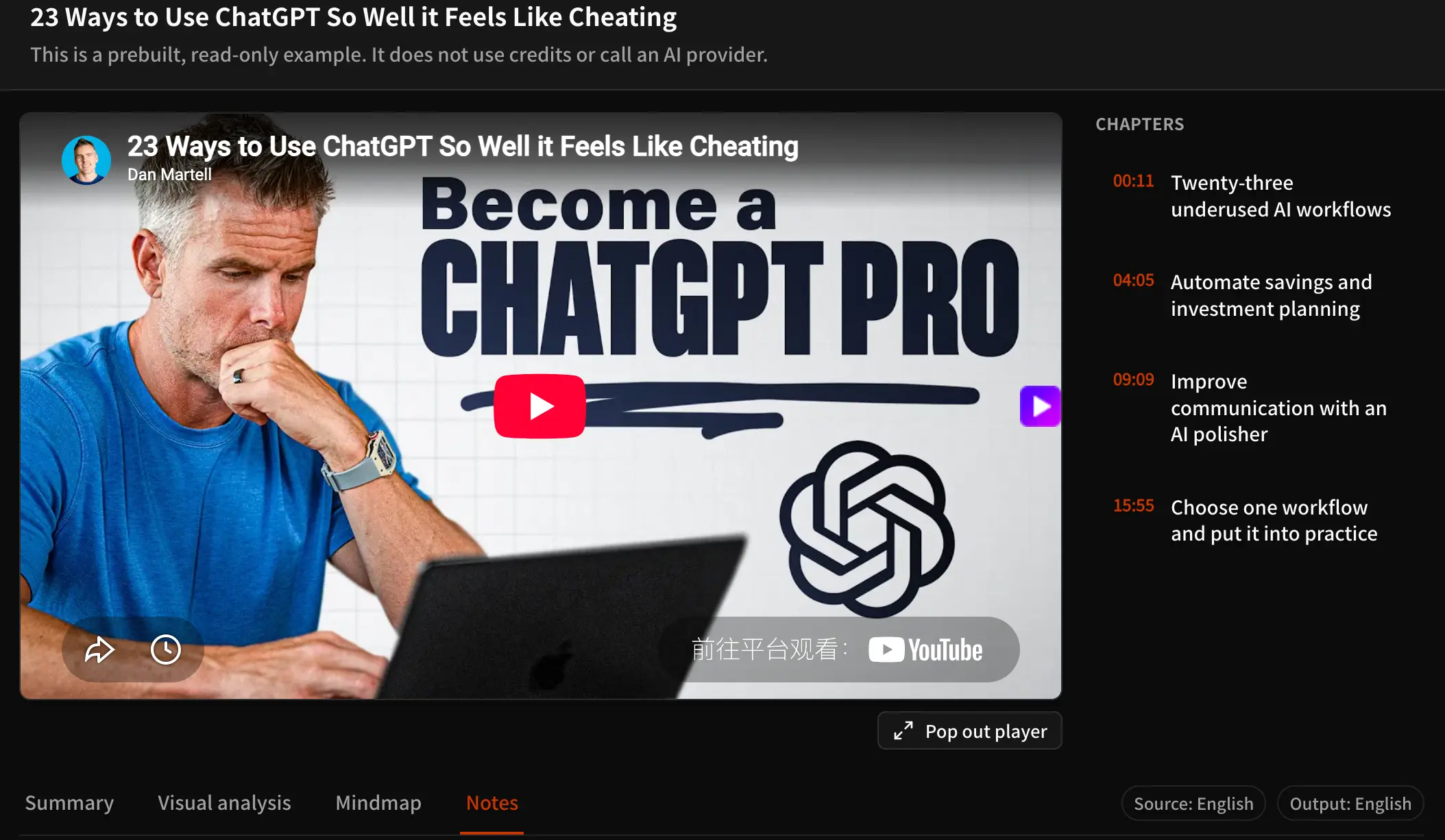
TubeTutor uses the processed subtitle track and video context to identify meaningful changes in topic, purpose or tutorial step. It organizes those boundaries into a chapter list beside the player rather than forcing you to scrub through an unlabelled timeline. Each chapter has a descriptive title and a timestamp that seeks the original video. The result works as both navigation and a first-pass outline: you can scan the structure, open the section that matters and move into the transcript or Summary when you need more detail.
Identify meaningful transitions across a long tutorial or lecture from its processed transcript and context.
See the likely purpose of each section before jumping, rather than relying on a list of unexplained timestamps.
Seek directly to the selected part of the source video and continue watching from the relevant explanation.
Use the generated chapter sequence as a practical outline for multi-step lessons, demonstrations and recorded training.
The chapter generator works from the same project context used for subtitles and the automatic Summary. You confirm the source first, then TubeTutor produces an outline that remains attached to the original player.
Copy the URL of a tutorial, lecture, presentation or other structured YouTube video. Paste it into the generator and submit it. TubeTutor validates the URL and retrieves the video details before asking you to spend credits.
Choose any supported output language for a temporary guest analysis. Sign in only when you want to save the project; signed-in preflight shows the active credit estimate before confirmation.
TubeTutor retrieves usable native captions or identifies when AI transcription is required. It analyzes the processed text and context for topic boundaries, changes in tutorial stage and transitions that can be represented as useful chapter titles.
The workspace opens with the chapter list beside the player. Scan the outline, select a chapter to seek the video and use the synchronized transcript or Summary when you need to inspect the section beyond its title.
Chapter titles follow the actual video rather than a fixed template. For a structured tutorial, the resulting outline may separate content such as:
Chapters are valuable when you need one part of a video now and still want to understand where it fits in the whole lesson. They reduce repeated scrubbing without pretending that a short title replaces the underlying explanation.
Preview the structure of a long lecture and return to the exact lesson section you need for revision. The chapter gives you a starting point, while the transcript and video provide the full teaching context.
Separate setup, implementation, testing and troubleshooting in a technical walkthrough. Click directly to the stage that matches your current problem instead of searching the timeline for a familiar screen.
Navigate onboarding, product training and recorded presentations by topic. A shared chapter timestamp gives colleagues a precise place to start while preserving the complete recording as the source.
Map where topics appear before a close review. Chapters can help decide which sections deserve transcript-level reading, but important claims should still be verified in the original passage rather than inferred from a generated title.
TubeTutor processes the available captions or required transcription, analyzes changes in topic and tutorial stage, and creates descriptive chapter titles with timestamps. The chapters are stored in the same project as the video, transcript and Summary, so they remain useful as navigation rather than becoming a detached outline.
Yes. Chapters are generated during the initial video processing flow and displayed beside the player. You do not have to mark every boundary manually. The result depends on the structure and transcript quality of the source video, so a clearly organized tutorial will generally produce more useful divisions than unstructured or noisy speech.
Yes. Each generated chapter includes a timestamp connected to the project player. Selecting it seeks the source video to that point. You can then watch the section, open the synchronized transcript or compare the chapter title with what the speaker actually explains.
Not currently. The workspace displays generated chapter titles and lets you use them for navigation, but direct chapter-title editing is not exposed in the current interface. The page states this limitation explicitly instead of promising an editing workflow that the product does not provide.
Yes. Guests can preview localized Chapters, Subtitles, the first Summary, and temporary Notes for one video in total, up to 5 minutes, in one selected output language. Results clear after leaving or refreshing. New accounts receive 200 starter credits once, valid for 30 days; higher-cost tools and saving require sign-in.
Yes. Long tutorials, lectures, presentations and multi-step lessons are the main situations where a chapter outline saves time. Processing time and credit use can increase with video length. The generator still needs usable captions or a successful transcription to understand where topics change.
Choose one of TubeTutor’s supported output languages before processing. The project uses that language for localized chapter titles and supported generated content. The current selector is the source of truth for availability; the feature does not claim to support every language.
TubeTutor creates chapters for navigation inside the learning workspace. You can use the timestamps as reference when preparing your own notes, but the current page does not promise one-click publishing back to a YouTube description. Check titles and timings against the source before reusing them elsewhere.
Generate a clear chapter outline with timestamps linked to playback.